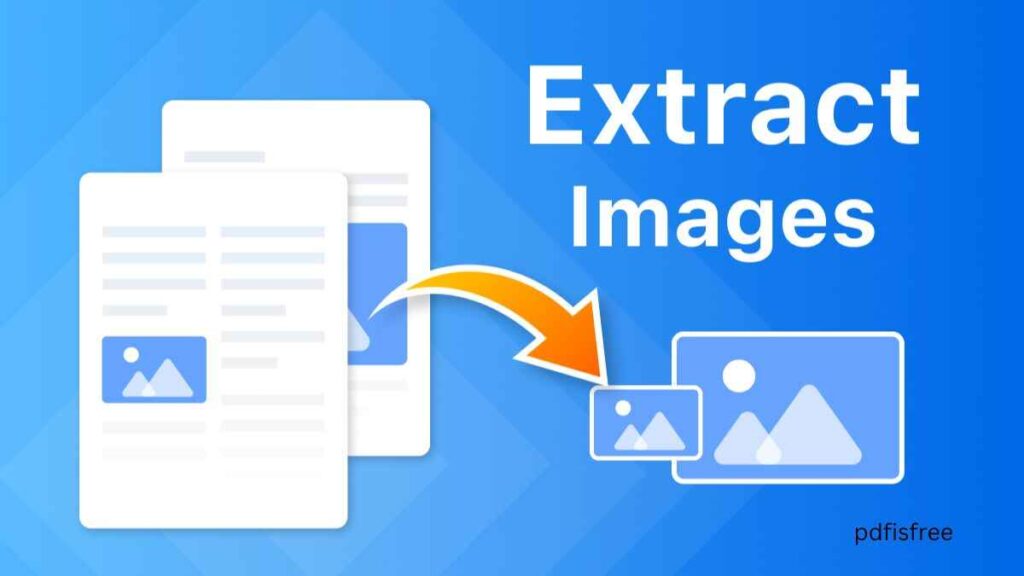
How to extract images from a PDF file: The use of PDF files in sharing documents is very common due to maintenance of formatting in crossing devices and operating systems. Nevertheless, one of the most frequent problems encountered by many users is the need to extract images in a PDF file without losing quality. Be it presentation, blog post, research paper or marketing content, it is always important that one extracts the images properly to preserve the resolution and clarity.
How to rotate or reorder PDF pages online
Here in this full guide, you will discover various ways of extraction of images within a PDF with the help of free applications, web based services, professional software as well as programming.
Why Extract Images from a PDF?
Before delving in the methods, it is important to know why one would want to extract images:
- Copy some graphics in a presentation or a report.
- Store large-sized product images.
- Get extract charts and infographics.
- Extract pictures in a scan document.
- Repurpose design assets
The approach that will provide the best quality and convenience will keep you being able to choose the approach depending on your needs.
Method 1: Retrieve images through adobe Acrobat Pro.
One of the most stable tools in image extraction in PDF files is Adobe Acrobat Pro. It does not alter the original image quality and resolution.
Steps:
- Import the PDF file into Adobe Acrobat Pro.
- Click on Tools in the top menu.
- Select Export PDF.
- Select an image format (JPEG, PNG or TIFF).
- Click Export, select a save location.
Advantages:
- Maintains high resolution
- Extracts all images at once
- Supports batch processing
Disadvantages:
Paid software
In case you have to operate with PDF files on a regular basis, this is the most professional solution.
Method 2: Image Extraction with Adobe Acrobat reader (Free version)
The Adobe Acrobat Reader is free and has limited functionality. Images can be copied manually by use of the Snapshot tool.
Steps:
- On Acrobat Reader, open the PDF.
- Click Edit > Take a Snapshot.
- Drag to select the image.
- Copy it into a picture program (such as Paint).
- Save the image.
Pros:
Free
Simple
Cons:
- Quality may reduce
- Slow when it involves several images.
Method 3: Extract PDF images Online.
Web 2.0 tools are easy when you do not need to install programs.
Popular platforms include:
- Smallpdf
- ILovePDF
- PDFCandy
- How It Works:
- Upload your PDF file.
- Select “Extract Images.”
- Get the extracted files.
Advantages:
- No installation required
- Fast and simple
Disadvantages:
- Internet required
- Confidentiality of files.
- File size limits
- Do not upload confidential documents.
Method 4: Screenshots to extract images (Quickest method)
Screen shots can be the quickest solution in case you need only 1 or 2 pictures.
On Windows:
- Press Windows + Shift + S
- Select the image area
- Save the screenshot
On Mac:
- Press Command + Shift + 4
- Select the image area
- Automaticaly save to desktop.
Pros:
- Extremely fast
- No extra software
Cons:
- Reduced image quality
- Unsuitable to high-resolution requirements.
Method 5: Image Extraction Python (Advanced User)
Automation comes in handy in case you are a developer or have a set of PDF files to work with.
You can execute Python libraries such as:
- PyMuPDF
- pdfplumber
- fitz
- Example (concept overview):
- import fitz
- doc = fitz.open(“file.pdf”)
for page in doc:
- for img in page.get_images():
- xref = img[0]
- pix = fitz.Pixmap(doc, xref)
- pix.save(“image.png”)
Advantages:
- Automated bulk extraction
- Preserves original quality
- Great for large projects
Disadvantages:
- Requires coding knowledge
- Method 6: Scanned PDF Extract Images.
Images might also not be embedded separately in the event that your PDF is scanned (such as a photographed document). In this case:
- Convert the PDF to images
- Apply OCR (Optical Character Recognition) program.
- Crop images manually
- OCR is available in such tools as Adobe Acrobat Pro.
- Best Image Formats to Choose
- Exporting images can be in the form of different formats:
- JPEG- Photographs, smaller file size.
- PNG – More graphics, more transparent.
- TIFF -Large file size and high quality.
- BMP – Uncompressed format
- Choose based on your purpose.
- Best Practices to Use to preserve image quality.
- Do not use screenshots in case high resolution is needed.
- Professional software must be used in extracting originals.
- Make sure you zoom to 100 percent and then take pictures.
- png or Tiff are the best to save images.
Proofread DPI (dots per inch) prior to publication.
Frequent Problems and Resolutions.
Problem: Images look blurry
Solution: Export tool is to be used rather than screenshot.
Issue: Pictures are placed as background.
Solution: Change PDF to an editable format.
Problem: File too large
Solution: After the extraction, compress the images with image optimization tools.
What Method is the Better?
- Situation
- Best Method
- Professional use
- Adobe Acrobat Pro
- Free and simple
- Online tools
- One quick image
- Screenshot
- Bulk extraction
- Python automation
- Scanned PDF
- OCR tool
Final Thoughts
There is no need to make the process of extracting images in a PDF file complex. Which method to use: It depends on your requirements, do you want good-quality professional output, easy and quick manual extraction, or automated processing in large amounts.
Professional software such as Adobe Acrobat Pro is of the best quality when used by regular business. Online tools and screenshot techniques are sufficient to users who are casual. Python libraries can allow the developers to automate the process.
Now that you are aware of all the possibilities, you may be sure that you can extract images out of any PDF file without any loss of quality.
I can also write one with optimized text containing keywords, meta description and headings that are optimized to rank in Google.