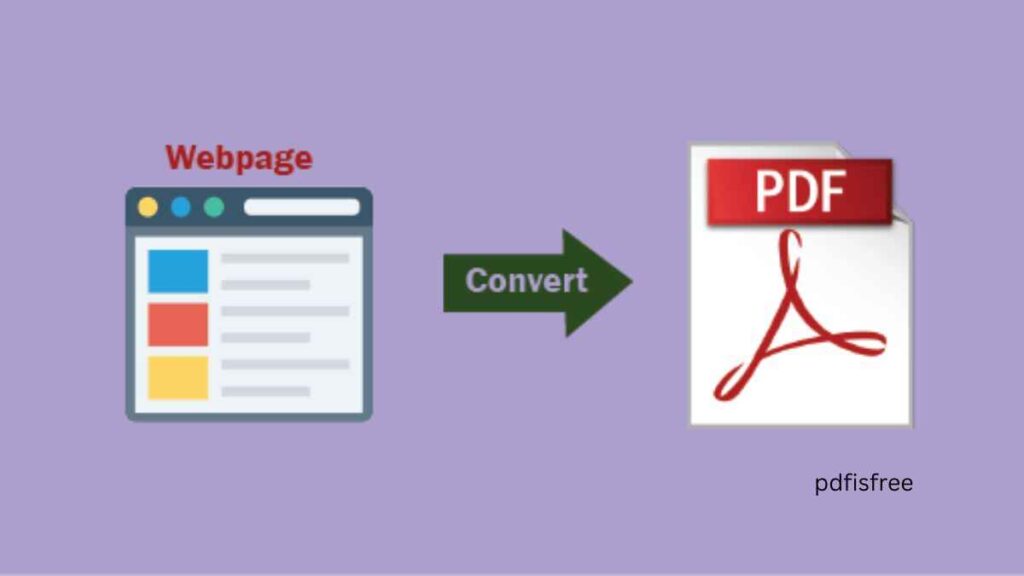
How to convert web pages to PDF quickly. Nowadays in the digital world, we always surf websites when searching research, business information, tutorials, news, and other educational materials. Web pages however can evolve, fade or become unavailable. This is the reason why it is a smart and practical solution to convert web pages to PDF.
What to do when your PDF file is corrupted (repair methods)
Ways to use PDFs in online presentations and slideshows
By saving a web page as a PDF you are able to:
- Access content offline
- Preserve formatting
- Share information easily
- Archive important research
Professionally print out
You will also get to know how to convert web pages to PDF within a short period of time with various devices and tools and also tips on how to get clean and professional conversion.
Why Convert Web Pages to PDF?
Let us first find out why it is helpful to convert web pages to PDF.
1. Offline Access
Internet-based web materials can be read even without the internet.
2. Permanent Record
Websites change frequently. A PDF makes the information look just like it is.
3. Easy Sharing
All the PDFs can be mailed and uploaded, and they are universally compatible.
4. Professional Printing
Clean layout is provided by PDF format.
5. Organized Research
Important references can be stored by students and professionals.
Method 1: Print to PDF is a feature of the Browser.
The best method of converting web page into PDF is through browser print option.
Steps (Works in Most Browsers):
- Open a web page to be saved.
- Press Ctrl + P (Windows) or Cmd + P (Mac).
- Choose the Save as PDF option in the printer options.
- Change layout options (portrait or landscape).
- Click Save.
- Select a folder and save the file.
Advantages:
- No extra software required
- Quick and simple
- Works offline
- The method is the best when it comes to saving in a hurry.
Plug-in 2: Browser Extensions.
Browser extensions have an ability to enhance PDF quality and formatting.
Why Use Extensions?
Certain websites are ad-supported, pop-up, or junk ones. Extensions assist to clean the page prior to saving.
Steps:
- Install web to PDF extension.
- Open the desired web page.
- Click the extension icon.
- Choose formatting options.
- Download the PDF.
Benefits:
- Cleaner formatting
- Option to remove ads
- Better layout control
- This can be applied to research papers and blogging.
Process 3: Online Web-to-PDF Converters.
Converting a web page can be done online by merely typing in the URL.
How It Works:
- Copy the web page link.
- Insert it into a web-to- PDF converting site.
- Click convert.
- Download the generated PDF.
Advantages:
- Browsing printing not necessary.
- Works on mobile and desktop
- Quick conversion
Caution:
Do not post sensitives on websites you are not sure about.
Method 4: The Web Page to PDF on the Mobile.
It is easy to access web pages and save them in PDF on smartphones.
On Android:
- Open the web page on your browser.
- Tap the three-dot menu.
- Select Share or Print.
- Choose Save as PDF.
Save the file.
On iPhone:
- Open the web page in Safari.
- Tap the Share button.
- Select Print.
- Zoom into the preview.
Tap Share one more time, and choose the option Save to Files.
This enables you to store internet-based information in your phone.
Method 5: Take a Screenshot and save as PDF.
In case a webpage cannot be converted easily, then you can use screenshots.
Steps:
- Take full-page screenshots.
- Observe multiple images into a single PDF.
- Save the final file.
- The technique is used when the print options are limited.
Method 6: Develop with Reader Mode.
A lot of browsers have a Reader Mode that removes clutters prior to conversion.
Why Use Reader Mode?
- Removes ads
- Simplifies layout
- Improves readability
- Creates cleaner PDFs
Once the reader mode is enabled, go through the print-to- PDF option.
Hacks to Quick and Dirty Web Page to PDF Conversion.
1. Adjust Page Layout
Select landscape wide web pages.
2. Eliminate Redundant Chapters.
Turn off advertisements or pop-ups.
3. Check Page Breaks
You can preview your PDF then save it, to prevent embarrassing page breaks.
4. Use High-Quality Settings
Make sure that the resolution is either standard or high in clear text.
5. Rename Files Properly
Name: Use descriptive words, e.g.,:
Research_Article_2026.pdf
Orchestrated Problems and Solutions.
Issue 1: Web Page truncates information.
Resolution: Adjust print options.
Problem 2: Ads Appear in PDF
Remedy: Reader mode or extension.
Problem 3: Large File Size
Remedy: On saving, compress the PDF.
Problem 4: Broken Formatting
Solution: Convert online or apply extension instead of using print method.
Best Method Depending on your needs.
Situation
Best Method
Quick save
Print to PDF
Clean version
Reader mode + Print
Mobile saving
Browser print option
Professional archiving
Web-to-PDF converter
Restricted site
Screenshot method
Advantages of PDF conversion of Web Pages among students.
Students can:
Store research articles on the Internet.
Archive lecture notes
Submit assignments
Highlight and make notes.
The PDF copies can be organized and referred to much more easily.
Advantages of Business and Freelancer.
Professionals can:
Save contracts and policies
Research competitor research.
Store evidence of Web data.
Share structured documents
It enhances documentation and record keeping.
Security Considerations
When converting web pages:
Public converters should not have sensitive data.
Use trusted tools
Store PDFs securely
Secrecy Confidential files are password-protected.
Security must be in the first place.
Final Thoughts
The ability to convert web pages to PDF at a short time, is an asset in the modern digital world. As a student who may need to save research, a freelancer who may need to store client resources, or a business person wanting to store information, the capability to save web material in PDF will make sure that it can be accessed and organized even in the long term.
The quickest is by simply going through the print-to- PDF option of your browser. Reader mode or browser extensions are better than plain formatting. Conversion of pages is simple since mobile users have inbuilt sharing facilities.
It takes you only several seconds to convert any web page to a properly formatted PDF by following the steps and tips presented in this guide.